eSIM
How to Check eSIM Data Usage on iPhone or Android: Check, Monitor & Avoid Running Out [2026]
Learn how to track your eSIM data usage, check your remaining balance, and avoid running out of data while traveling.
TL;DR:
- If you are using Nomad eSIM, you can track your eSIM data usage through the Nomad app or website, where you’ll see remaining data and expiry.
- You can also check usage in your phone’s settings for real-time tracking.
- Nomad sends alerts when you reach 60% and 80% of your data usage.
- Monitoring both app and device helps you avoid running out of data while traveling.


How can I check my eSIM data usage?
There are two main ways to check your data usage: using the Nomad eSIM app/website or using your phone settings.
Using the Nomad eSIM app or website
The most accurate way is through your Nomad account:
- Open the Nomad app or log in on the website
- Go to the Manage page
- Select your active plan
You’ll see:
- data used
- remaining balance
- plan expiry
This is the most reliable source for your actual plan usage.
Checking Data Usage on iPhone

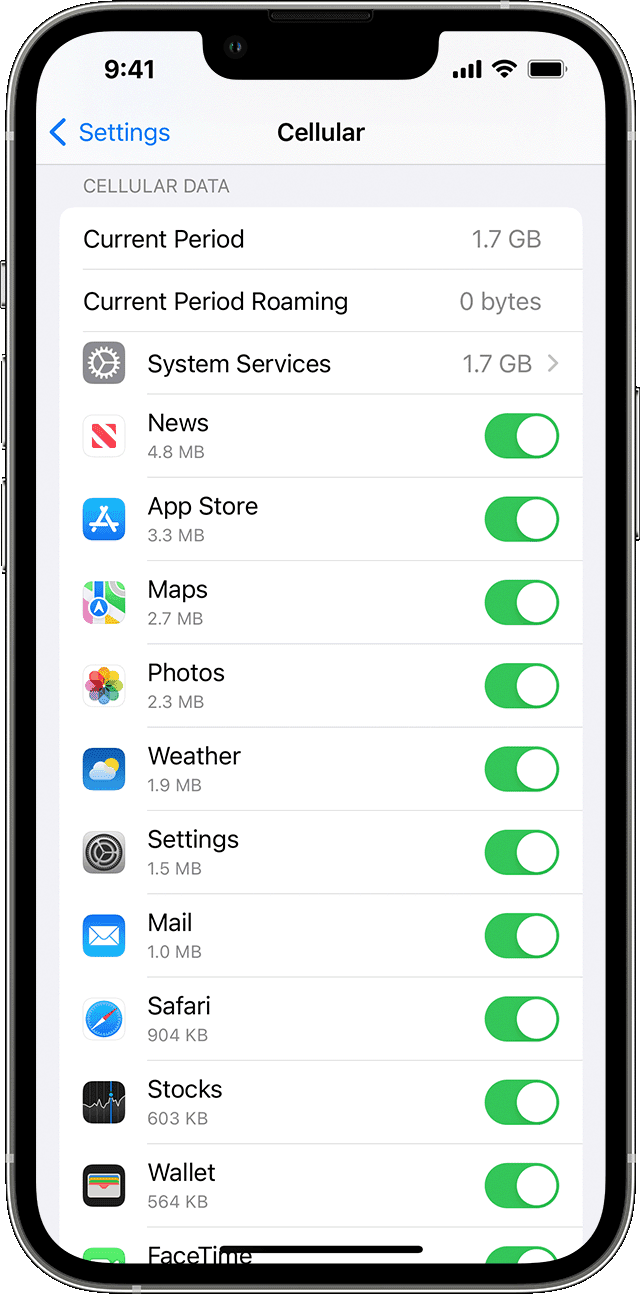
- Go to Settings > Cellular (or Mobile Data)
- Scroll down to the section that states “View Data Usage”. You will be able to see your data usage for the current period, as well as a breakdown of the data usage by each app.
Do note that the data usage is a cumulative of your total data used in the given period, which means that it is not specific to the data that you are using on your trip.
If you would like to only track the amount of data that you have used on your travels, it is recommended that you reset your statistics before the trip.
To reset your statistics, you can scroll to the bottom and select the option to “Reset Statistics”. This will clear your current period's data usage and start the tracking from afresh. By resetting this statistic before your trip, the data usage that is being displayed will then be entirely for the period of your trip.
Checking Data Usage on Samsung Galaxy Phones

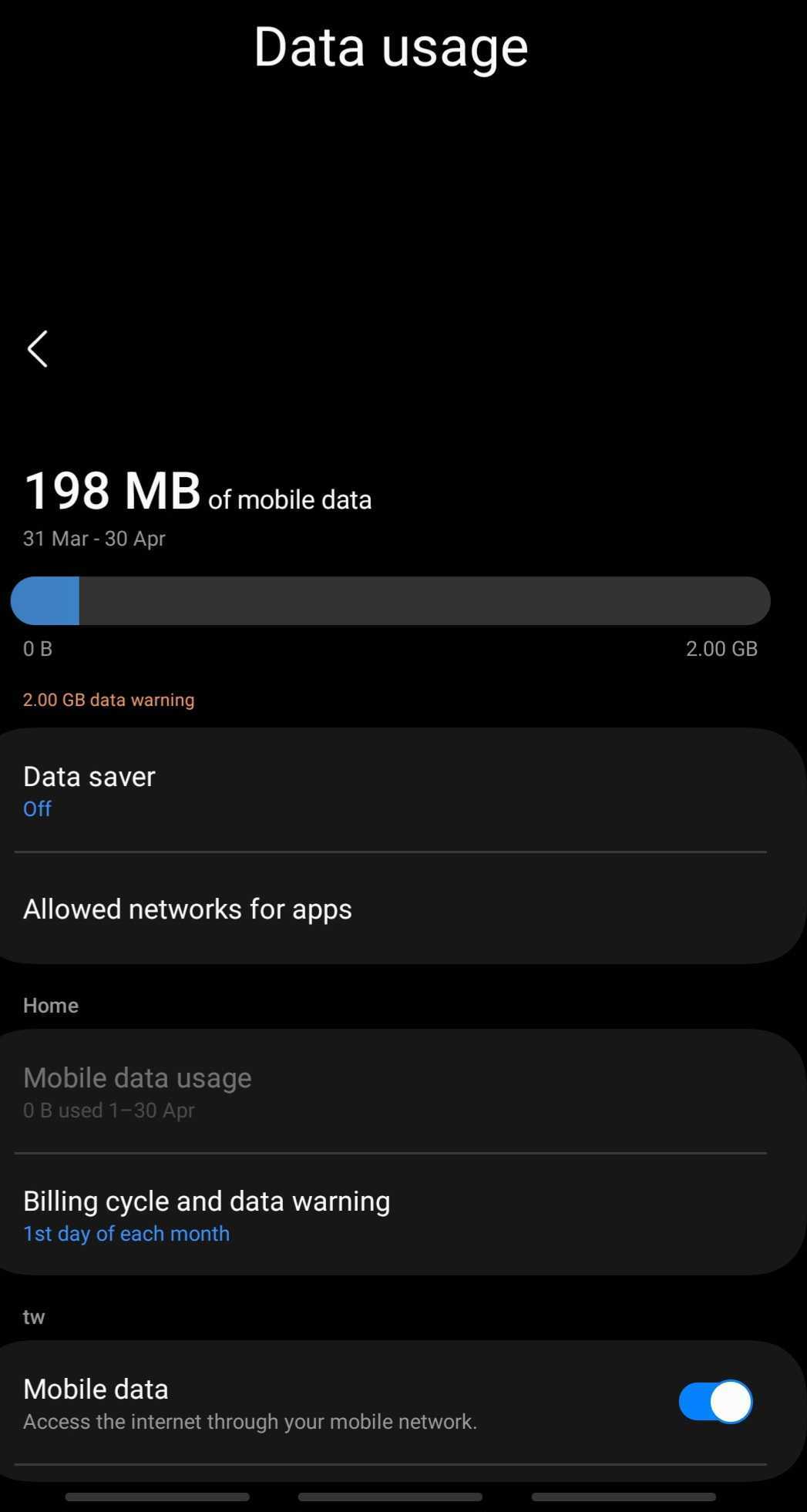
- Swipe up from your home screen, to access your apps
- Tap Settings > Connections > Data Usage. The amount of mobile data you have used will be displayed
- Tap Billing cycle and data warning > Tap Start billing cycle on
By default, your data usage is tracked from the start to the end of the month before it resets. If you prefer to align the billing cycle with the date your data allowance is refreshed, you can change the start date.
Simply set the new start date after confirming it with your network provider. Keep in mind that it may take up to a month for the changes to accurately reflect your data usage based on the new billing cycle.
Checking Data Usage on Google Pixel Phones
Follow these steps to check your data usage on your Google Pixel device:
- Launch your phone's Settings app > Network & internet > select SIMs. Your total data usage will be displayed at the top.
- Tap App data usage for graphs and detailed statistics.
- Select Time Period: Tap the down arrow to choose the desired time period.
- Review Per-App Usage: Scroll below the graph to see how much data each app is using.
Checking Data Usage on Xiaomi Phones
To check your data usage on a Xiaomi device, follow these simple steps:
- Navigate to Settings > Connection & Sharing > Data Usage.
- Select Time Period: Tap the drop-down list and click on This month. Your total data usage will be displayed.
These built-in tracking tools help you stay informed about your data consumption, ensuring you never run out of data unexpectedly.
Checking Data Usage on Huawei Phones
Follow these steps to check your data usage on your Huawei device:
- Navigate to Settings > Wireless & Networks > Data Usage.
- Your total data usage is displayed at the top.
- Scroll down to see the data usage for each application, listed below the app names.
Why does my phone’s data usage look different?
It’s normal to see differences between: your phone’s data usage and your eSIM provider’s reported usage.
This happens because:
- devices round or estimate usage
- updates may be delayed
- tracking periods may differ
For the most accurate number on your eSIM data usage, always refer to the Nomad app.
Will I get alerts when I’m running out of data?
Yes. Nomad eSIM sends email notifications and push notifications typically at:
- 60% usage
- 80% usage
This helps you plan ahead before your data runs out.
What uses the most data when traveling?
Some activities consume significantly more data:
- video streaming (HD/4K)
- hotspot/tethering
- map navigation over long periods
- app updates and background syncing
Understanding this helps you avoid unexpected data drain.
How to reduce data usage on your eSIM
1. Enable low data mode
Limits background usage and automatic updates.
2. Restrict background apps
Turn off background data for non-essential apps.
3. Use Wi-Fi when available
Especially for:
- downloads
- updates
- streaming
4. Monitor app usage
Check which apps consume the most data and adjust accordingly.
What happens if I run out of data?
If your data runs out your connection may stop or slow down and you’ll need to either:
- buy an add-on
- or purchase a new eSIM plan
Top-ups can usually be done instantly through the Nomad eSIM app.
Frequently Asked Questions (FAQs)
Can I track data usage for each eSIM separately?
Not always. Many phones combine usage across SIMs, but some devices allow per-SIM tracking.
Which is more accurate: phone or app?
The Nomad app is more accurate for billing and plan usage.
How often should I check my data usage?
For short trips, checking once a day is usually enough to avoid running out unexpectedly.
Why is my data running out so fast?
Common reasons include background app refresh, streaming, and automatic updates running in the background.