eSIM
How to Use iMessage with Travel eSIM | Setup & Troubleshooting Guide (2026)
Wondering if iMessage works with an eSIM? Learn how to set up iMessage correctly, fix activation issues, and use your main number seamlessly when traveling with a Nomad eSIM.
TL;DR:
- Yes, iMessage works with a travel eSIM.
- iMessage uses internet (not SMS), so your eSIM data connection is enough.
- You can keep using your main phone number while using eSIM for data.
- Make sure your number is selected in Settings → Messages → Send & Receive.
- If iMessage isn’t working, check your data connection, confirm your number is selected for iMessage, and restart your device.

Introduction: Can You Use iMessage with eSIM While Traveling?
Yes. since iMessage is an internet-based service, it only requires a stable data connection, which your Nomad eSIM provides. When you activate a travel eSIM, you’re simply adding a new data profile. Your Apple ID and primary number remain unchanged, so your iMessage continues to work as usual.
If you’ve recently upgraded to an iPhone 17 or iPhone 17 Pro Max, rest assured that all models support dual eSIM and multi-line functionality, allowing you to keep your home number active while using your Nomad eSIM for data abroad.
👉 If you’re curious how eSIM affects your phone number setup, read Does Installing an eSIM Change My Phone Number?
Understanding the Difference: iMessage vs. SMS/MMS
👉 Bottom line: iMessage only needs data, so as long as your Nomad eSIM has an active connection, your blue bubbles will send just fine - no roaming charges involved.
For comparison, you can also check how messaging apps like WhatsApp handle eSIM transitions in Will Travel eSIM Change WhatsApp Number?.
Step-by-Step Guide: How to Use iMessage with Travel eSIM
Follow these steps to ensure your iMessage is configured correctly to work with your travel eSIM's data connection while keeping your primary phone number active for messaging.
1. Verify Your Primary Number is Active for iMessage
iMessage is tied to your Apple ID and phone number, not the SIM providing data.
On the iPhone 17, iPhone 16, and earlier models, you can confirm this by:
- Go to Settings > Messages.
- Ensure the iMessage toggle is ON (green).
- Tap Send & Receive.
- Under "You can receive iMessages to and reply from," ensure your primary phone number is checked.
- Under "Start new conversations from," select your primary phone number. This is the most critical step to ensure your recipients see your familiar number.
2. Configure Your Cellular Data Settings
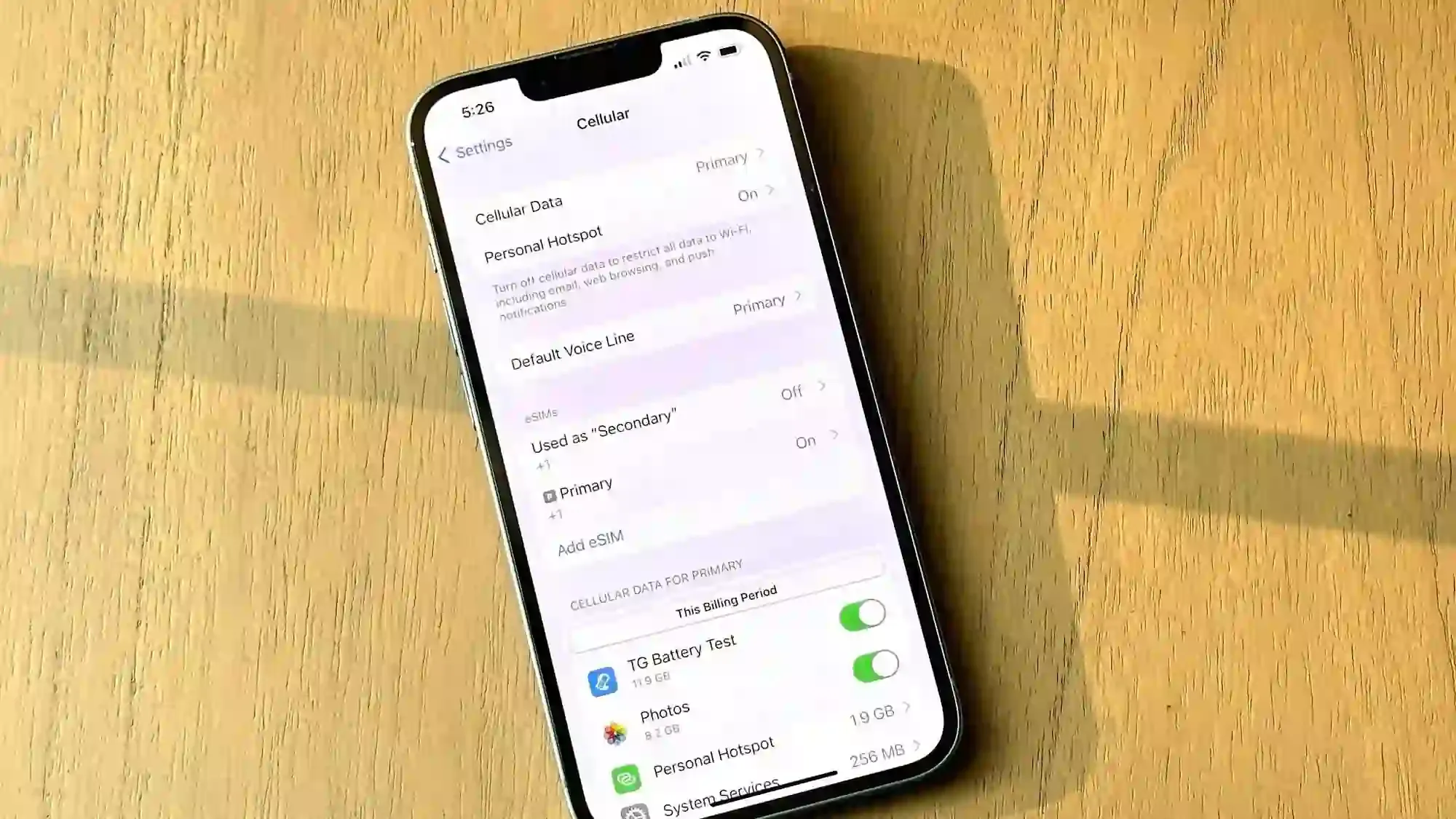
Whether you’re using iPhone 17 or iPhone 14 and later, Apple’s dual-SIM system allows you to choose which line handles data:
- Go to Settings > Cellular (or Mobile Data).
- Tap Cellular Data (or Mobile Data).
- Select your Travel eSIM (e.g., "Nomad Travel Data") as the line for cellular data.
- Ensure Allow Cellular Data Switching is OFF to prevent your phone from accidentally using your primary SIM's expensive roaming data if the eSIM signal is weak.
3. Disable 'Send as SMS' to Avoid Roaming Charges
To prevent your iPhone from automatically converting a failed iMessage into an expensive SMS text message, especially in areas with poor data connection:
- Go to Settings > Messages.
- Toggle OFF the "Send as SMS" option.
Troubleshooting: iMessage Not Working with eSIM
If you find that iMessage not working with eSIM, here are the most common solutions:
Issue 1: iMessage is Stuck on "Waiting for Activation"
This usually happens when the iPhone is trying to re-verify your primary number.
- Check Data Connection: Ensure your travel eSIM is active and has a strong data signal. Try loading a webpage to confirm connectivity.
- Toggle iMessage: Go to Settings > Messages, turn iMessage OFF, wait 30 seconds, and turn it back ON.
- Restart Your iPhone: A simple restart often resolves activation glitches.
- Check Date & Time: Ensure your phone's date and time are set to Automatic in Settings > General > Date & Time.
Issue 2: Why are my messages turning green instead of blue?
- Green = SMS (uses your carrier → may incur roaming charges)
- Blue = iMessage (uses data → your eSIM)
Common causes for your messages turning green include:
- Recipient is not using iMessage
- iMessage not activated properly
- Your phone is defaulting to SMS (check your data source and ensure your travel eSIM is selected)
👉 For broader connectivity issues, refer to our detailed guide to learn how to troubleshoot when your eSIM is not working while traveling.
How to Conserve Data While Using iMessage Abroad
1. Use iMessage with Wi-Fi Whenever possible, connect to Wi-Fi for media-heavy messaging. This conserves your travel eSIM data for when you are truly mobile. Remember that iMessage works flawlessly over Wi-Fi, regardless of your active cellular line.
2. Optimize Data Usage
- Enable Low-Quality Image Mode: Go to Settings > Messages and toggle Low Quality Image Mode ON. This significantly reduces the data consumed when sending photos.
- Avoid Large Attachments: If you need to send a large video or file, use a cloud service link (like iCloud or Google Drive) instead of attaching the file directly.
👉 If you’re unsure how much data you typically use, you’ll find a helpful breakdown in How Much Data Do I Need When Traveling?.
Conclusion: Seamless Messaging on the Go
With the right setup, iMessage works seamlessly with a travel eSIM, letting you stay connected on your usual number without roaming charges. Before your next trip, explore Nomad eSIM plans, available in over 200 destinations with flexible data options to fit every traveler’s needs.
Frequently Asked Questions (FAQs)
Will my message history transfer when switching between SIMs?
Yes, your message history will remain intact when switching between SIMs or eSIMs as long as you're using the same Apple ID. If you've enabled Messages in iCloud, your entire message history will sync across all your devices regardless of which SIM is active.
Can I use iMessage with a data-only eSIM?
Yes, iMessage works perfectly with data-only eSIMs such as Nomad's travel eSIMs. Since iMessage operates entirely over the internet, it only requires a data connection—not SMS or voice capabilities.
Why is iMessage not activating on my eSIM?
iMessage activation depends on your phone number. Switching SIMs may require re-verification. Try toggling iMessage off and on, and ensure your phone number is selected under Send & Receive.
Will my contacts see my regular phone number or my travel number?
Your contacts will see whichever phone number or email address is set as your default "Start New Conversations From" in iMessage settings. If you've configured iMessage correctly following this guide, they should continue to see your regular phone number.
What happens to my iMessage when my travel eSIM expires?
iMessage will automatically switch to using any available internet connection, either WiFi or your primary SIM's data if enabled. Your iMessage configuration (phone number and email addresses) will remain unchanged. If you've disabled data on your primary SIM to avoid roaming charges, you'll need WiFi to send and receive iMessages until you activate a new travel eSIM or enable data on your primary SIM.
How much data does iMessage typically use while traveling?
iMessage is relatively data-efficient for text-only messages:
- Text-only messages: Approximately 1-5KB per message
- Photos: 200KB-3MB depending on size and whether "Low Quality Image Mode" is enabled
- Videos: 5MB-200MB depending on length and quality
- Audio messages: About 100KB per minute
Nomad eSIM Free Trial
Try Nomad eSIM risk-free with our free trial. no contracts, no commitment. Set up in minutes, enjoy secure connectivity, and manage everything easily through the Nomad eSIM app.