eSIM
How to Install an eSIM: Step-by-Step Guide for iPhone & Android [2026]
Learn how to install an eSIM on iPhone or Android in minutes. Follow simple steps, avoid common mistakes, and get connected before you travel.
TL;DR:
- You can install an eSIM in minutes using a QR code or app.
- Installation and activation are different. Your plan typically starts when you connect to a network.
- You can install your eSIM before traveling and activate it upon arrival.
- Most users find the process quick and straightforward.

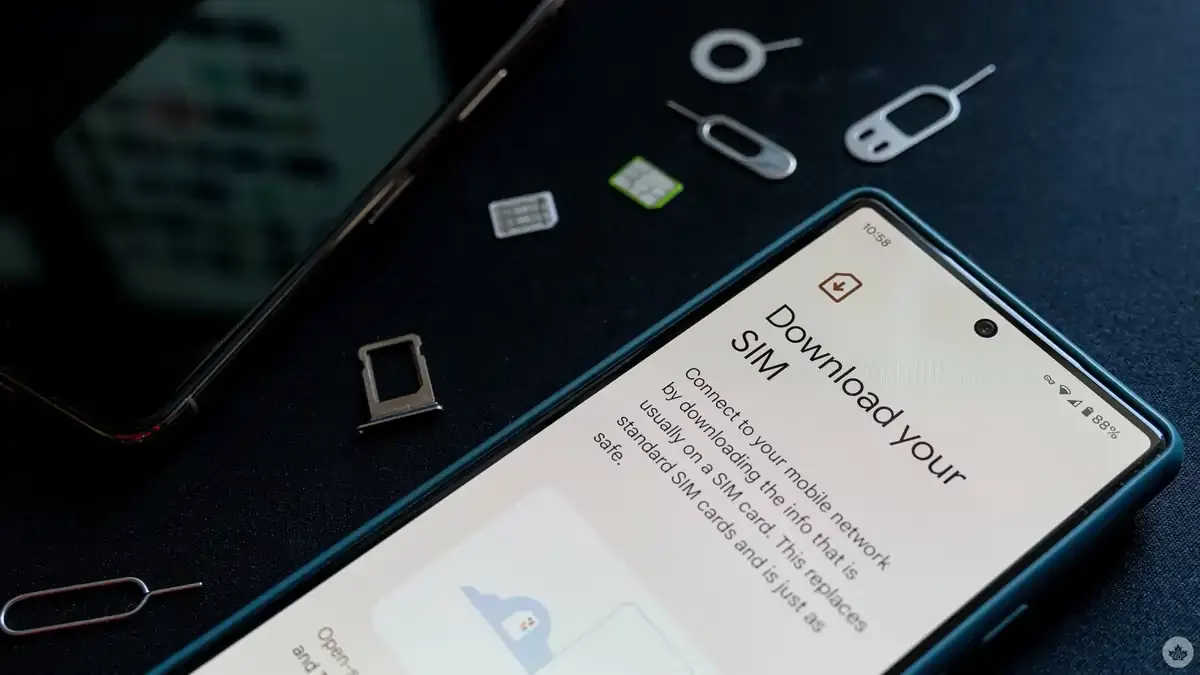
Before installing (or, before buying) - just check: is my phone compatible with eSIM?
It might sound obvious, but of course you aren’t going to be installing any eSIMs in a hurry if your phone simply is not an eSIM-compatible, unlocked phone. But fear not - these days most of the flagship models of major manufacturers support eSIM, so don’t get left behind!
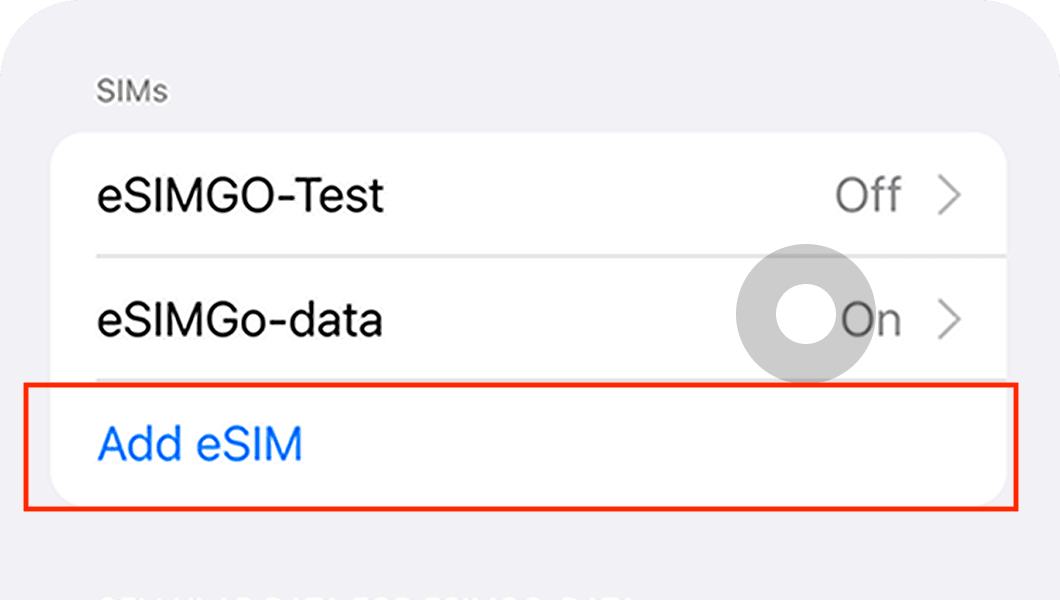
To check if your phone is eSIM compatible, go to your phone settings (SIM manager on Android or Cellular / Network on iOS) and check if there is an option to 'Add an eSIM'. If you have the option to 'Add an eSIM', your device is eSIM-compatible.

Check here for the latest and most updated list of eSIM compatible smartphones. New eSIM-compatible models are released every quarter so check back often.
How To Install an eSIM
Installing an eSIM is simple and usually takes just a few minutes. There are two main ways to install an eSIM:
- QR code (most common)
- automatic or manual setup via app
In most cases, you’ll receive installation instructions after purchasing your eSIM plan.
Method 1: Install eSIM using a QR code (recommended)
This is the easiest and most common method.
On iPhone:
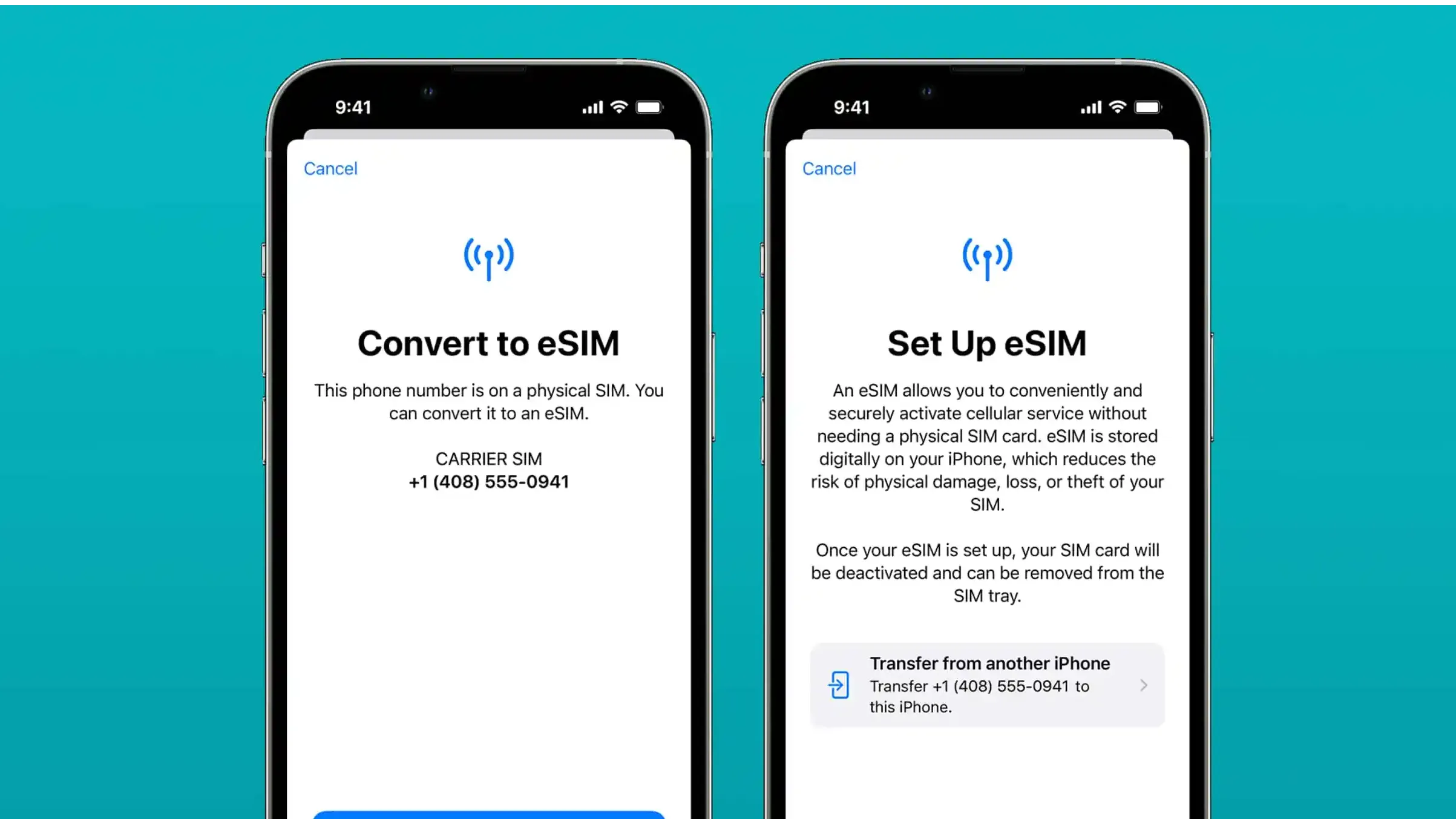
- Go to Settings → Cellular → Add eSIM
- Select Scan QR Code
- Scan the QR code provided
On Android:
- Go to Settings → Network & Internet / SIM Manager
- Tap Add eSIM / Add Mobile Plan
- Scan the QR code
Once scanned, your device will download and install the eSIM profile automatically.
Method 2: Install eSIM via app (automatic installation)
Some providers (like Nomad eSIM) allow direct installation through their app.
Steps typically include:
- Open the app
- Go to your purchased plan
- Select Install eSIM
- Follow on-screen instructions
This method removes the need to scan a QR code and is often the fastest option.
Manual installation (backup option)
If QR code or app installation doesn’t work, you can install manually.
- Go to Add eSIM → Enter details manually
- Input the activation details provided
This method is less common but useful in certain situations.
When should I install my eSIM?
You should install your eSIM before you travel.
- Installation requires internet connection
- Activation usually happens later when you connect to a network
Installing early ensures you’re ready once you land and there is no need to rely on airport WiFi.
What should I do after installing my eSIM?
Once installed:
- turn on your eSIM in settings
- select it for mobile data
- enable data roaming
When you reach your destination, your eSIM will connect automatically.
What if I can’t install my eSIM?
Common fixes:
- ensure you’re connected to WiFi
- check your phone is eSIM-compatible
- make sure the QR code hasn’t already been used (it’s one-time use)
- restart your device
If issues persist, you can try manual installation or contact support.
Can I install multiple eSIMs?
Yes. Most devices allow:
- multiple eSIM profiles stored
- switching between them in settings
However, only one (or two, depending on device) can be active at a time.
Useful Links
Looking for device-specific instructions to installing your eSIM? These articles might help:
- How to install an eSIM on iPhone
- How to install an eSIM on iPad
- How to install an eSIM on Samsung Galaxy phones
- How to install an eSIM on Xiaomi Devices
- How to install an eSIM on Google Pixel Devices
- How to install an eSIM on Oppo Devices
- How to install an eSIM on your Windows Laptop
Frequently Asked Questions (FAQs)
Can I install eSIM without WiFi?
No, you need an internet connection to download the eSIM profile.
How long does it take to install an eSIM?
Usually 2–5 minutes.
Can I reinstall an eSIM?
Most eSIMs can only be installed once, so avoid deleting it unless necessary.
Do I need to remove my SIM card?
No, you can keep your physical SIM and use eSIM for data.